
Model Search
Model search methods available in ATLAS
ATLAS offers two types of searches for searching models; Seach in Model and Attribute Search.
Search in Model
Search in Model is a general search against all data within the active model.

-
Click on the magnifying glass icon within the top left panel.
-
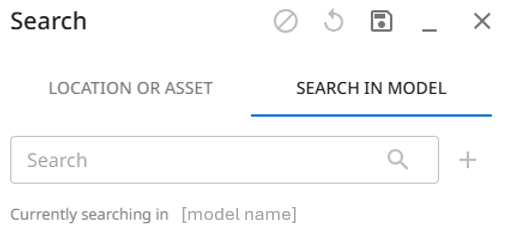
The search window will open on 'Search in Model'.
-
Enter your search term and press enter or click the search icon.
-
If the search returns results, they will open within a search results table. Where there are no results, a message stating 'No elements found' will be displayed in the search window.
Attribute Search
Attribute search is a quick model search that searches a specific attribute within the model for the value present against the attribute. Therefore returning all elements that hold the same value for the attribute.
-
Select an element in the model to display it's properties within the Model/Element Details panel.
-
Hover over the attribute to use in the search, a pop-up menu will appear, click upon the magnifying glass icon. Depending on the data type of the attribute, the following will happen:

-
String type: the search will immediately execute, returning results within the results table and highlighting matching elements.
-
Numeric type: a numeric search pop-up will open with the current value set within optional numeric range fields. If required these values can be changed or the sliders used to set a range to search.
The extents of the numeric range available are determined by the data in the model for the given attribute.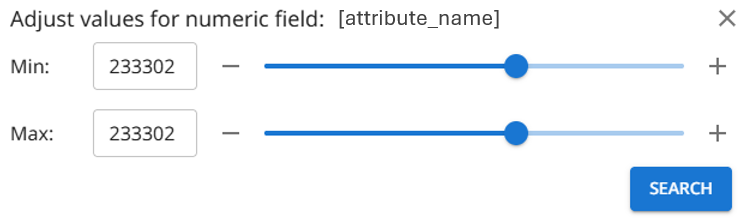
-
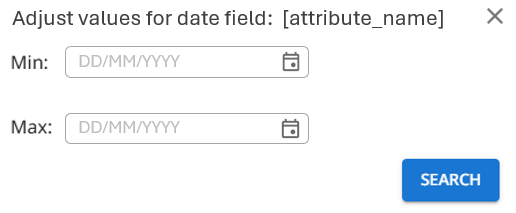
Date type: a date selection pop-up will open with the current value set within optional date range fields. If required these values can be changed to set a range to search.
-
Search Results
Search results are returned within a table which lists the elements that contain data matching the search term. The elements will also be highlighted in the model.
Results are paginated with a page size of 200. To load the next page so that the next set of elements are appended to the results table and element highlighting, click on the 'Load next set of elements' button in the table header.
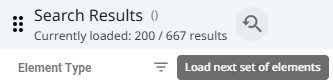
The table displays the elements with their Element Type, Object Name and unique Object ID, along with a 'zoom to' button, allowing you to focus the model view upon an element.
Updated 8 months ago