
Document Chatbot
An Aid to Help You Understand Your Documents
EMT uses an open source LLM for it's Document AI which is held locally on our UK based servers. Your data will never travel outside of EMT architecture and the AI model does not connect to any wider online models.
The chatbot will only reference the content of the active document/document pack and will neither source information from other sources or hallucinate content for answers.
Accessing the Document AI Chatbot
For documents which have been processed through the AI model in readiness for the chatbot, within the document viewer in the bottom left-hand corner you will see the chatbot icon.

-
Click the icon
-
The Chantbot will open on the right-hand side as to not obstruct the document in view
-
Click upon the plus icon to begin a new conversation.
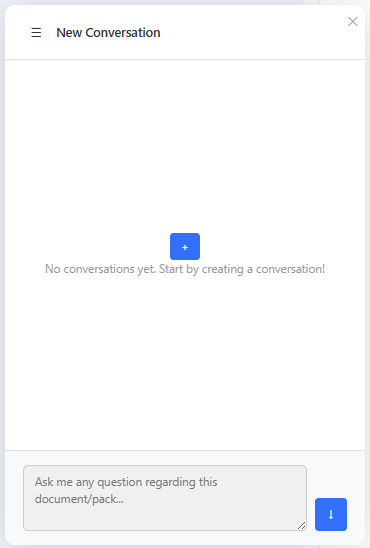
To start additional conversations, click on the hamberger menu icon in the top left of the chatbot and click on 'New'.
-
In the pop-up, add a name for your conversation.
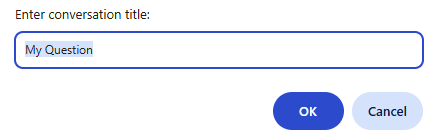
-
Once named, you can begin asking questions within the chatbot.
Chatbot Responses
The chatbot will respond with detail taken from the active document/pack, whilst also including source links to locations within the document from which the responses were sourced.
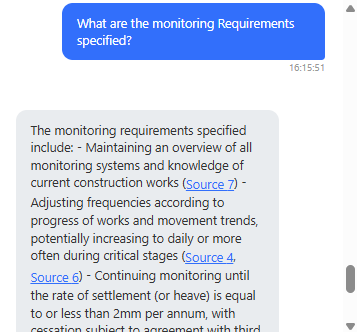
When responses are provided, the chatbot will automatically determine a conversation context from the question asked.
These contexts appear above the question entry field and are optional to select.
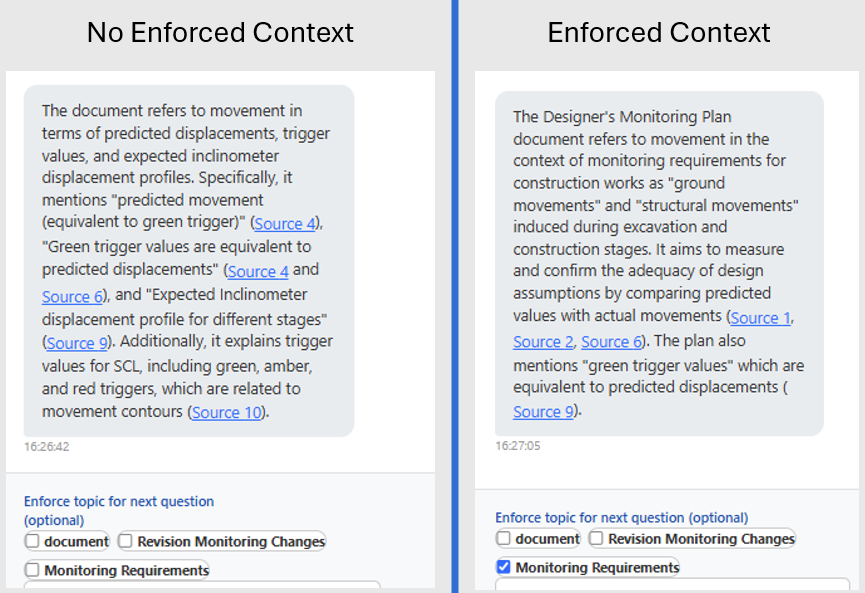
Selecting a context when asking a question, will inform the chatbot that the question your are asking should be considered in the selected context, therefore the focussing the responseto the context rather than the applying the question generally across the document.
Here's an example of the differeing responses to the same question when a context is applied or not.
Question: "how does the document refer to movement?"
Chatbot Scenarios
Document Packs
When using the document chatbot within a document pack, the chatbot will refer to all documents within the pack, and therefore source it's response information from across all documents.
From within a pack, if you choose to enter revision compare mode for a specific document, the active conversation against the pack will close and a conversation for the specific document will begin - either by starting a new conversation or continuing with an existing.
Individual Documents
For individual documents the chatbot only refers to the information contained within the document.
On entering revision compare mode, an active conversation will remain open and the chatbot will then refer to both revisions for it's responses.
You can ask comparative questions when in compare mode, to help identfy where changes have been between revisions.
Updated about 4 hours ago