
Changesets
Managing Data Changes
Introduction to Changesets
All changes within EMT are captured within a changeset. Changesets are a method of controlling change and forming a imutable audit trail for both committed (published), and uncommitted (rolled-back) changes. Refer to related article: Changeset Management, for information of changeset statuses and permissions.
User Roles and Changeset Permissions
Roles Involved
- Assets:assets.Roles.Viewer
- Assets:assets.Roles.Creator
- Assets:assets.Roles.Approver
- Assets:assets.Roles.Admin
Changeset Permissions
The following table indicates the permissions each user role has in terms of changesets:

Creating a Changeset
Automatic Creation
The following processes all trigger the automatic creation of a changeset:
- Create Assets; either through the create assets wizard, asset data import or via API.
- Asset Data Import; for both asset creation and asset data updates.
Manual Creation
When making changes to asset data via the platform's Smartgrid (Smartgrid Editing), you must either first create a new changeset or select an existing changeset from the options above the Smartgrid, when viewing asset data in Table View.

Via API
If using our open API you can also create new changesets using this POST endpoint: '.../assets/changesets/'
Viewing Changesets
Once a changeset has been created it will appear within the creators Change Approvals area, which is found upon the Assets landing page under the Change Approvals tab:

A listing of the changesets accessible to you will appear.

- To rename a changeset, click on the green edit icon to the left of the current name.
- To view a count of the assets contained within a changeset, click on the 'Show Count' button.
- To view the assets and data changes within a changeset, click on the changeset name. This will open a tree view of the assets contained within the changeset and from here click on the tree elements to enter the table view of the assets per class.
- To undertake an action against a changeset, click on the desired available action (share/rollback/publish)
Sharing a Changeset for Authorisation
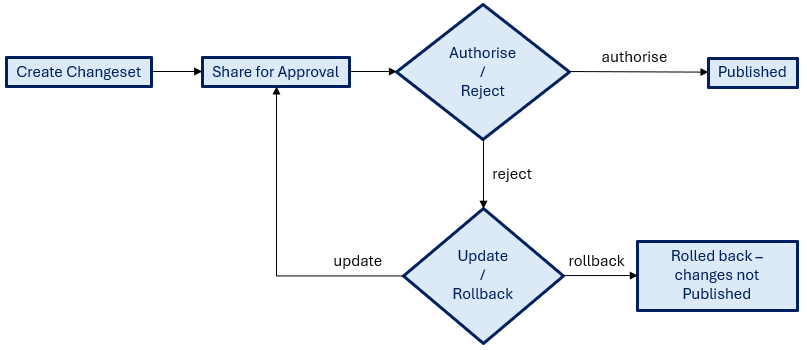
After .Creator or .Approver users, create a changeset, in order for their changes to be Published, they must first share their changeset to a user who is of either a .Approver or .Admin role.
The recipient acting as the Approver will then have the option to authorise or reject the changeset. On authorisation, this allows the changeset creator to Publish their changeset.
Note - if a changeset is shared with a .Admin user for authorisation, the .admin user will also have the authority to publish the changeset directly.
Rollback a Changeset
Before a changeset is published, if the changes are no longer required or are rejected, the changeset can be rolled back. This process maintains a record of the un-published changes by changing the changeset flag t o 'rolledback' - this is a means of maintaining a full audit history for data changes, whether published or not.
The assets within the changeset are also released and become available for editing again.
Publish a Changeset
Following its authorisation, a changeset can be published, either by the changeset creator, or if authorised by an .Admin user, the .Admin user themselves can publish directly.
Publishing a changeset commits the changes as the latest data for the associated assets, and the data becomes available to the wider project. The assets within the changeset are also released and become available for editing again.
Changeset History (audit trail)
To view the change history of an asset, against each asset within the Smartgrid there is a magnifier icon, clicking this will open an asset summary page which contains a changeset history tree.
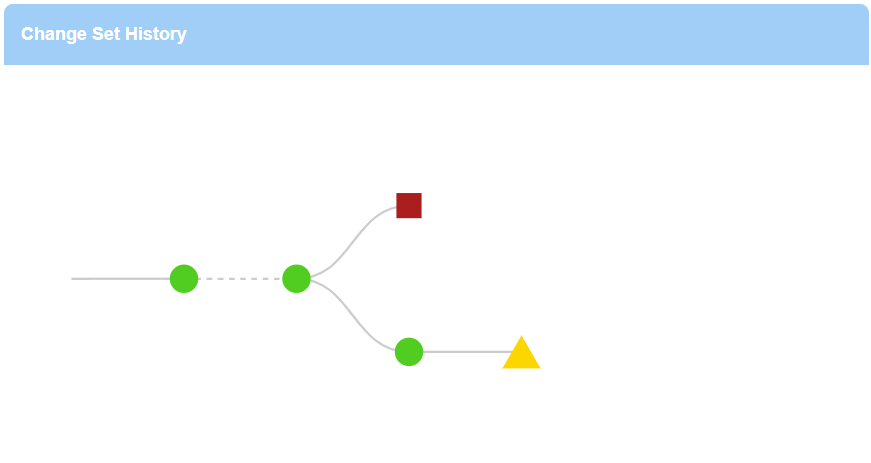
The tree contains three icon types:
- Green Circles for Published changesets
- Yellow Triangles for In-progress changesets
- Red Squares for Rolled-back changesets
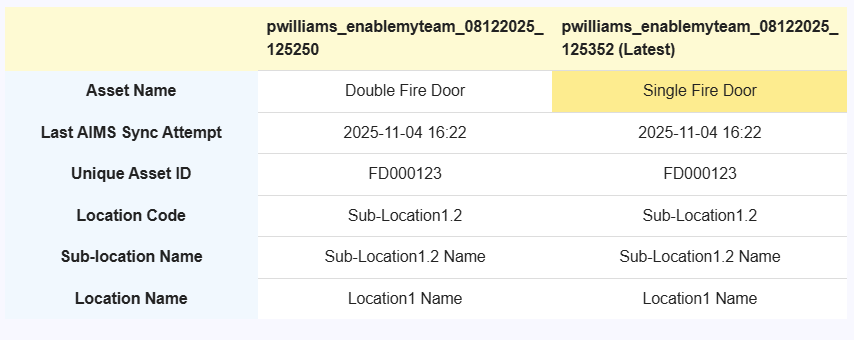
Clicking upon any of these icons provides an option to compare the changes within that changeset with the latest published data. The data differences can be viewed within the table below the changes history.
Data differences are highlighted within the latest changeset column.
Changeset Search via API
As with all data within EMT, full changeset histories can be obtained via the use of our API using endpoint: changeset search
Updated 10 months ago